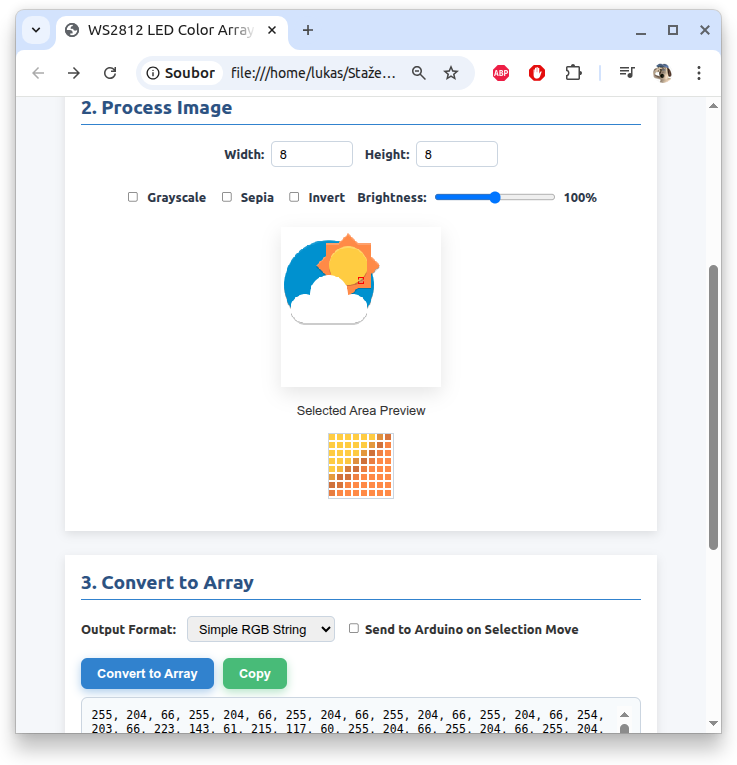
This WS2812 LED Color Array Converter is tool that lets users upload or drag-and-drop an image, select a rectangular area, apply color filters (grayscale, sepia, invert, brightness), and convert the selected pixels into various RGB array formats (decimal, hex, or simple string). It provides a live preview of the selected area, displays the generated color array and its byte size, and supports sending the data directly to an Arduino via a serial connection. The interface includes interactive controls for selection size, filters, output format, and live sending on selection move, making it a user-friendly utility for preparing LED color data. For connection with Arduino it uses Serial API. Also source code for Arduino is included.
https://www.ctvrtky.info/wp-content/uploads/2025/07/Pixel-Art-Editor.html
Code used in Arduino
#include <FastLED.h>

#define LED_PIN     5
#define NUM_LEDS    64  // Set to your number of LEDs
#define BRIGHTNESS  128
#define LED_TYPE    WS2812
#define COLOR_ORDER GRB

CRGB leds[NUM_LEDS];

void setup() {
  Serial.begin(115200);
  FastLED.addLeds<LED_TYPE, LED_PIN, COLOR_ORDER>(leds, NUM_LEDS);
  FastLED.setBrightness(BRIGHTNESS);
  FastLED.clear();
  FastLED.show();
}

void loop() {
  int bytesNeeded = NUM_LEDS * 3;
  static int bytesRead = 0;
  static uint8_t colorBuffer[NUM_LEDS * 3];

  while (Serial.available() > 0 && bytesRead < bytesNeeded) {
    colorBuffer[bytesRead++] = Serial.read();
  }

  if (bytesRead == bytesNeeded) {
    // Update LEDs
    for (int i = 0; i < NUM_LEDS; i++) {
      leds[i] = CRGB(colorBuffer[i * 3], colorBuffer[i * 3 + 1], colorBuffer[i * 3 + 2]);
    }
    FastLED.show();
    bytesRead = 0; // Reset for next pattern
  }
}